 Why It Went to Spam
How do I read email headers to find the problem?
Short answer
Open the full headers of a message that went to spam, using Show original in Gmail or View message details in Outlook. Find the Authentication-Results line to see whether SPF, DKIM and DMARC passed. Then read the Received lines from the bottom up to trace the path the message took.
The detail
Every email carries a block of headers above the part you read. They record who sent it, which servers handled it, and the checks it went through.[1] When mail lands in spam, the headers are the closest thing to a reason you'll get.
Use a message that actually went to spam. A test message sent to your own Gmail or Outlook.com address works well.
Step 1: Open the full headers
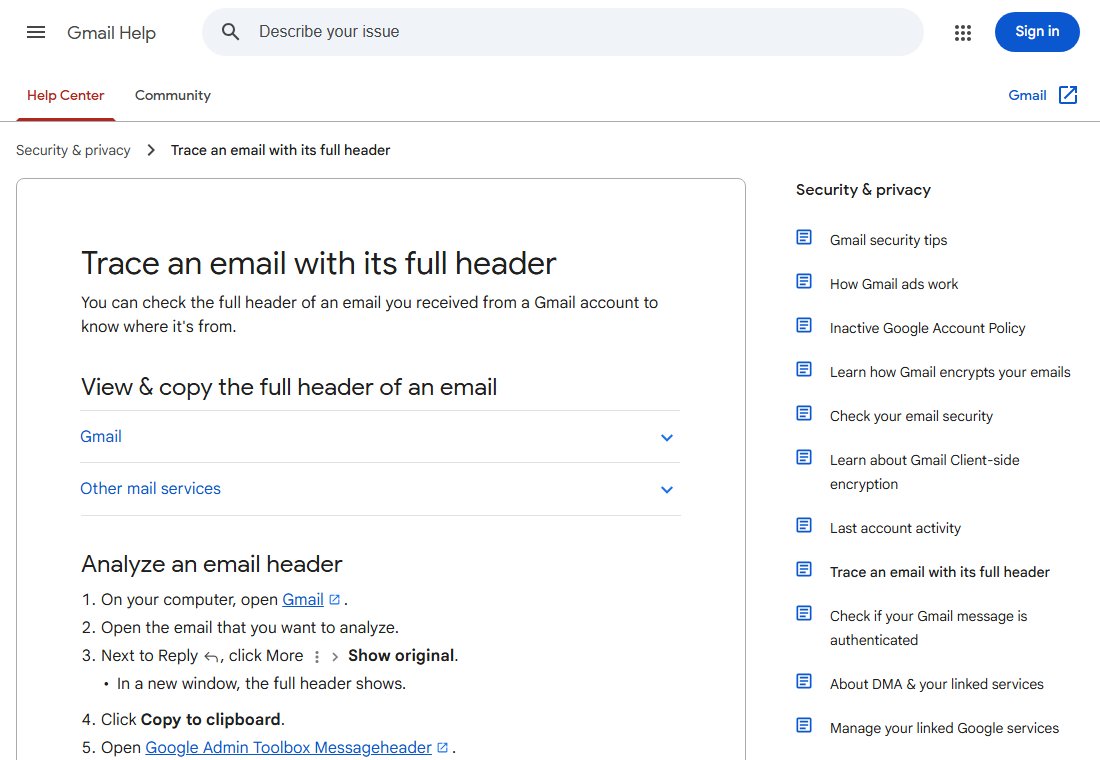
Gmail: open the message, click More next to Reply, and choose Show original.[2] The full header opens in a new window.[2]
Outlook.com and new Outlook: open the message, then choose View and View message details.[1]
Classic Outlook for Windows: open the message in its own window, then click File > Properties.[1] The headers are in the Internet headers box.[1]
Step 2: Find Authentication-Results
Search the headers for Authentication-Results. This line reports the results of the checks the receiving server ran.[3] Here's a made-up example in the same format.[3]
Authentication-Results: mx.example.org;
    spf=pass smtp.mailfrom=bounces.example.net;
    dkim=pass header.d=example.com;
    dmarc=pass header.from=example.com
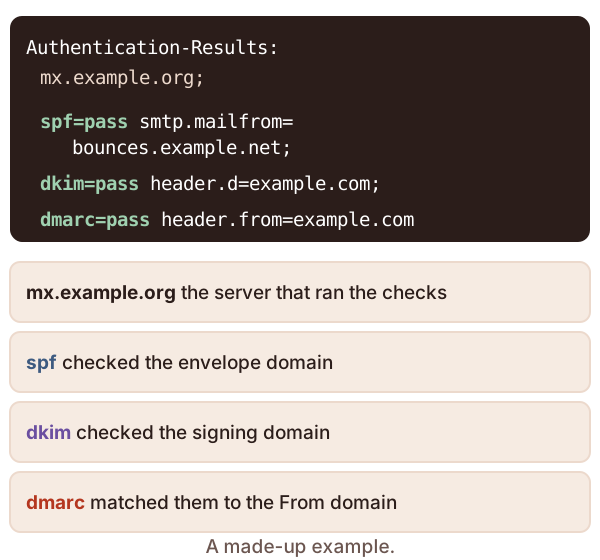
Read it one check at a time.
- SPF. The
spf=part is the result. Thesmtp.mailfrompart shows which envelope domain was checked. - DKIM. The
dkim=part is the result. Theheader.dpart shows which domain signed it. - DMARC. The
dmarc=part is the result. Theheader.frompart is the domain in the From address.[4]
Step 3: Work out what the results mean
| What you see | What it usually means | Where to go next |
|---|---|---|
spf=fail or softfail |
The sending server isn't in your SPF record | Writing an SPF record |
spf=permerror |
Your SPF record is broken, for example with too many lookups | Writing an SPF record |
dkim=fail |
Key missing or message changed after signing | What DKIM is |
dkim=none |
The message wasn't signed | What DKIM is |
SPF and DKIM pass, but dmarc=fail |
They passed for a domain that doesn't match your From address | What DMARC is |
| Everything passes | Authentication isn't the problem | What sender reputation is |
That last row matters. If all three pass and your mail still lands in spam, look at complaints, reputation and sending habits instead.
Trust only your own provider's line. A spammer can add a fake Authentication-Results line that claims everything passed.[3] So use the line that names your provider's own server. It's usually the one nearest the top. Each checking server adds its line at the top of the message.[3]
Step 4: Read the Received lines from the bottom up
Each mail server that handles a message adds a Received line. It records which server sent the message, which server got it, and when.[5] Servers always add their line at the top.[5] So a message that passed through several servers has several lines, newest first.[5]
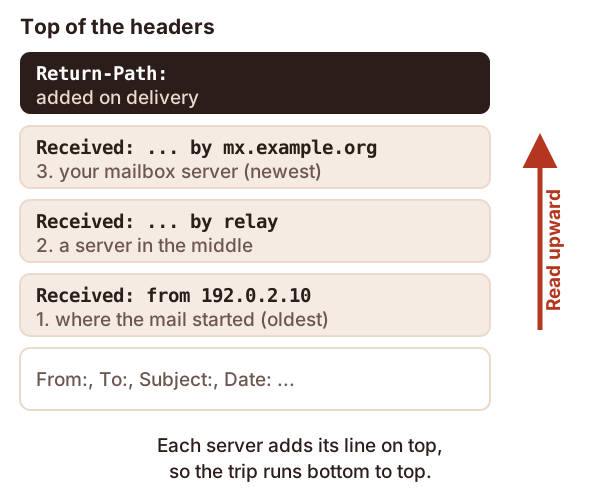
To follow the trip in order, start at the bottom Received line and work up. Look for three things.
- The first server. The bottom line shows where the mail started. Is it a server you expect to send for you?
- A long gap in time. Compare the times on each line. A big jump shows where mail sat waiting. Gmail's view also shows a "Created at" time for checking delays.[2]
- An unexpected hop. A forwarding service in the middle can explain an SPF failure. See what SPF is.
Near the top you'll also find Return-Path. The final server adds it when it delivers the message.[5] It shows the envelope sender, the address that SPF checked.
Step 5: Get a second opinion
Google offers a free header reader called Messageheader, in the Google Admin Toolbox. Paste the full header in, and it analyzes it for you.[2]
Sources
- View internet message headers in Outlook, Microsoft Support (accessed 2026-10-18)
- Trace an email with its full header, Google (Gmail Help) (accessed 2026-10-18)
- RFC 8601: Message Header Field for Indicating Message Authentication Status, IETF (accessed 2026-10-18)
- RFC 9989: Domain-Based Message Authentication, Reporting, and Conformance (DMARC), IETF (accessed 2026-10-18)
- RFC 5321: Simple Mail Transfer Protocol, IETF (accessed 2026-10-18)