 Why It Went to Spam
How do I use Google Postmaster Tools?
Short answer
Postmaster Tools is Google's free dashboard for mail you send to Gmail. You add your sending domain, prove you own it with a DNS record, and wait for data. It only covers personal Gmail accounts, and small senders may see nothing at all. When it does show data, start with the Spam rate and Compliance status dashboards.
The detail
When mail to Gmail goes to spam, you're mostly guessing. Postmaster Tools is the one place where Google shows you what it sees. It costs nothing. It has limits, though, and it helps to know them before you start.
What it covers, and what it doesn't
Postmaster Tools is a Google service for people who send email. It only reports on messages sent to personal Gmail accounts.[1] Mail to Outlook.com, Yahoo or a company mailbox won't show up in it.
There's a second limit. Data can be missing when the number of messages for a day is too low.[1] If you send a few dozen emails a week, the dashboards may stay empty. That doesn't mean something is broken.
How to set it up
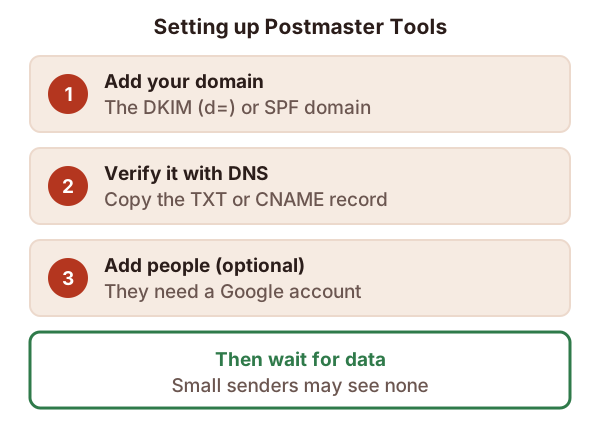
You need a Google Account to sign in. Then follow these steps.[1]
- Add your domain. Use the domain in your DKIM signature (the
d=part) or your SPF domain. Our page on email headers shows where to find both.[1] - Verify it. Postmaster Tools gives you a record to copy. Add it to your domain's DNS, then click Verify.[1]
- Add other people, if you want. Postmaster Tools won't tell them, so do it yourself.[1]
Using a subdomain for bulk mail? Our page on sending from a subdomain covers adding it on its own.
How fresh is the data?
Not very. Google says the data usually updates within 24 hours, but it can take longer.[2] So after a fix, wait a day or more before judging it.
Two small details help. The dates use UTC, not your local time.[2] And you can look back 7, 30, 60, 90 or 120 days.[2]
Which dashboard to open
There are several. Here's what each one is for.
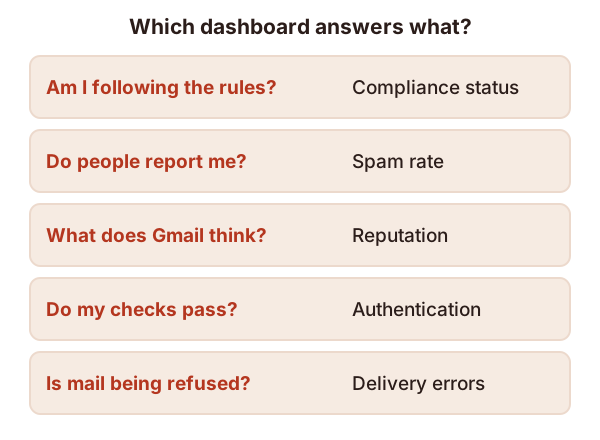
- Compliance status. It checks your mail against Google's sender rules.[2] Our page on the bulk sender rules lists them.
- Spam rate. It shows the share of your messages that people mark as spam in Gmail.[2] This is the one to watch first.
- Reputation. It rates your domain and your IP addresses.
- Authentication. It shows how much of your mail passes SPF, DKIM and DMARC.[2]
- Delivery errors. It shows authenticated mail that was rejected or failed for now.[2] Our page on bounce codes helps with the messages behind it.
Reading the reputation rating
Reputation comes in four levels. At the bottom, "Bad" means a history of sending a lot of spam regularly.[2] "Medium" means legitimate mail with the occasional spam.[2] At the top, mail is rarely marked as spam by Gmail.[2] For what builds or hurts the rating, see sender reputation.
When two dashboards seem to disagree
Google lists a few cases that look odd. They have simple causes.
- High spam rate, good reputation. Messages in the inbox are being reported as spam.[2] Treat it as an early warning.
- Low spam rate, poor reputation. The Spam rate dashboard counts only reports from people. Gmail may be sending many of your messages to spam by itself, and few people are rescuing them.[2]
If the spam rate is the problem, Google suggests using the feedback ID to find which kind of message is reported most.[2] The next step is to fix who you send to, which our page on spam filters explains.
Sources
- Set up Postmaster Tools, Google (Gmail Help) (accessed 2026-10-29)
- Postmaster Tools dashboards, Google (Gmail Help) (accessed 2026-10-29)